

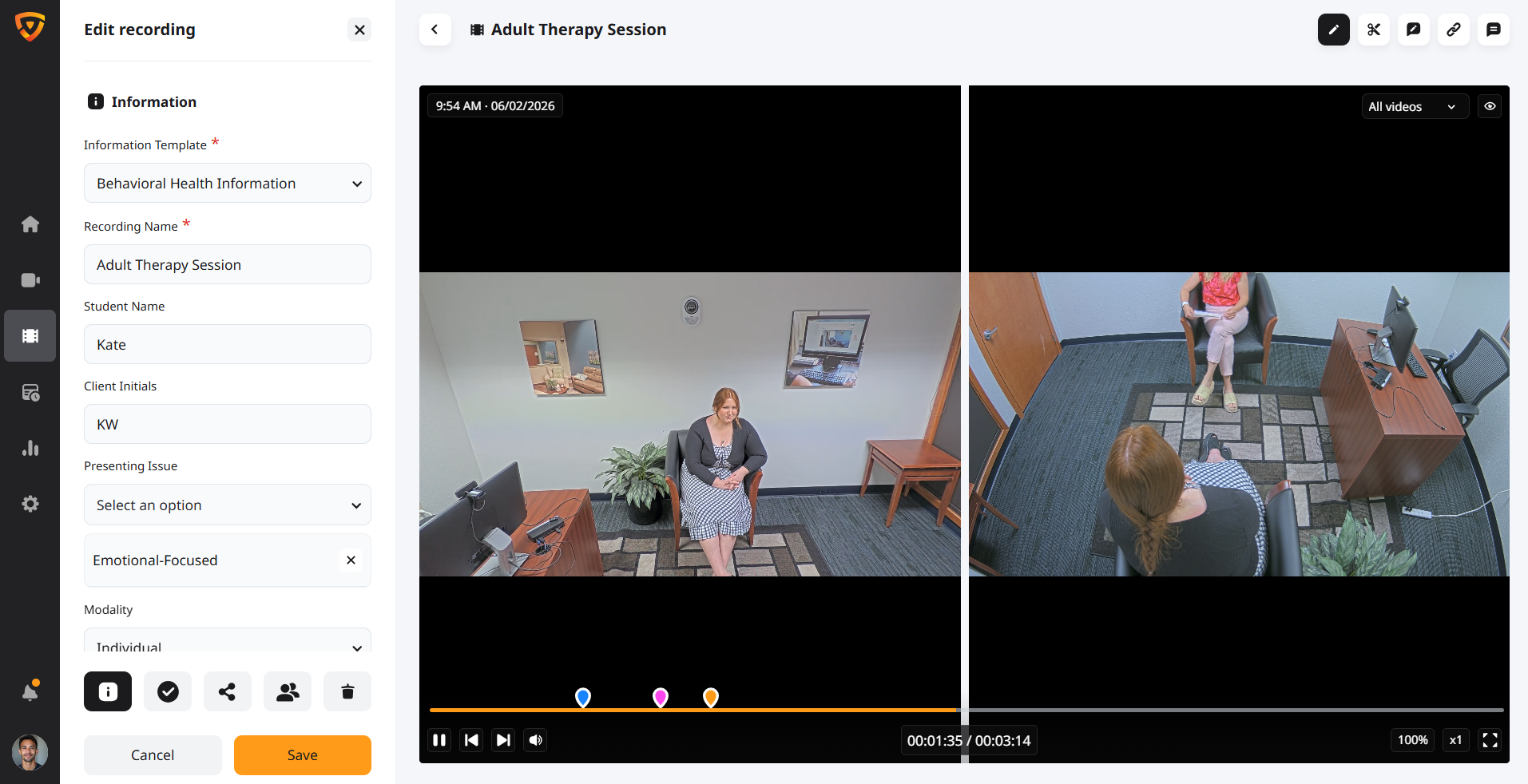
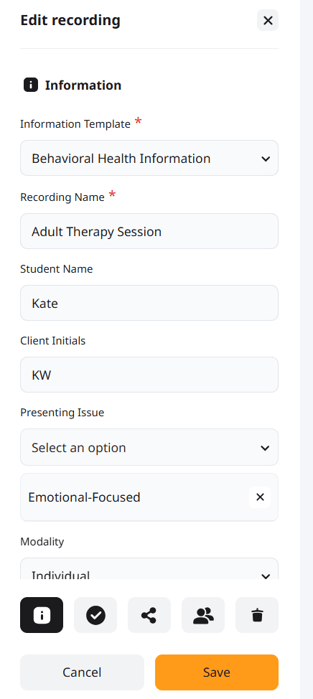
Information Templates describe the main subjects of the video, for example, student, session type, class, and semester. They provide a basic structure to help organize and categorize content. Making it easy to quickly apply to a video and search for a recording later. Information can contain text, drop-down, audio, image, note, files, multi-select, and static text. Adding images and files can help educators or researchers associate other relevant information with the video itself.
Fields can be optional or required when information is imperative to the recording. Create a repository of templates for various scenarios in your department or campus. Assign information templates to videos with a dropdown list of all the permission-visible templates when viewing a room, and press the record button or when scheduling a recording. Information templates also allow admins or educators to select a duration to limit how long the video is recorded.
Information Template Example:
Information Template Name-
Simulation Scenario
Text Field -
Recording Name,
Student Name,
Instructor
Drop-Down Field-
Simulation Type Options (Manikin-Based, Standardized Patients, Computer Assisted Instruction, In-Situ, Human Patient Simulators, Task Trainers, Medical Moulage, Multidisciplinary Scenarios, Hybrid Simulations)
Multi-Select Field-
Scenario Options (Cardiac, OSCE, Patient Assessment, Pediatric, Respiratory, Shock, Trauma, Surgery)
Inventory Options (IV Pump, IV Start Kid, Ultrasound, Defibrillator, ECG)
Files (File Upload) -OSCE File
Notes (Note Field)
Creating an Information Template
Using an Information Template
Evaluation Templates
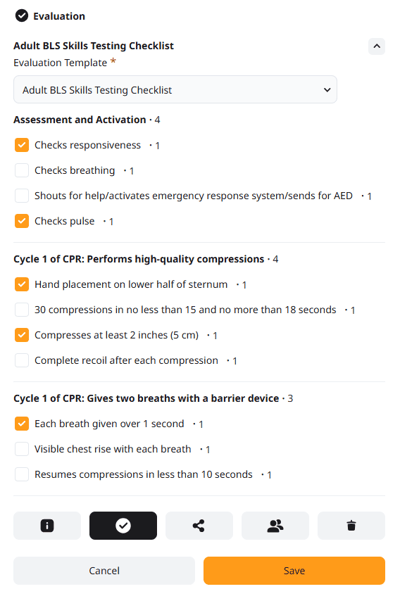
Evaluation templates provide educators, trainers, professors, interviewers and researchers with a way to associate videos/sessions with assessment data or insights. They can be custom-built with different field types such as static text, single select, multi select, and description fields. This allows flexibility for users to create evaluation forms based on their specific requirements, whether thats creating scoring rubics, questionaires, objective data, checklists, competency evaluations, surveys, or OSCE data. Users assign scoring to values of different fields or questions to create a quick way to assess or grade the overall performance.
Evaluation Templates can be assigned to different users and groups which can help organize what individuals or rooms will have access to specific eval forms. This keeps class, session, and department data structured and secure.
Example Evaluation Template:
Static Text -
Student Name,
Session,
Class,
Trainer,
Skill
Single Select -
Patient Care - Scoring Rubric - Rated 1 - 3,
Positioning Skills - Scoring Rubric - Rated 1 - 3,
Procedure Safety - Competent, Approaching Competency, Not Competent.
Multi-Select -
CPR - Performing high-quality compressions - Checklists,
Medication Administration - Checklists,
Description Field -
What would you do differently next time?,
What are the things the student did well or need to focus on.
Creating an Evaluation Template
Using Evaluation Template
Quick Marker Templates
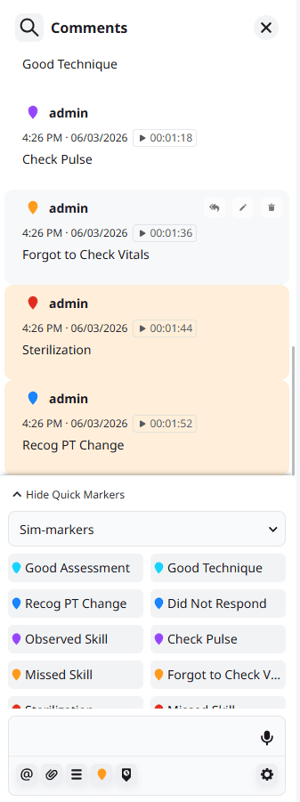
Quick Marker templates help you create easy-to-use and readily available markers that are common to your review sessions. Create different quick marker templates and give access to groups or the global account. Users in review can select different quick marker templates they need depending on the type of video being assessed. These markers are created to associate common feedback comments that save time or identify areas of interest that are helpful and relate to the session. They can be color-coded to easily identify the type of moment being annotated.
Quick Marker Template Example:
Sim - Markers
Positive Markers -
Good Assessment
Good Technique
Recog PT Change
Observed Skill
Sterilization
Constructive Markers-
Did Not Respond
Missed Skill
Forgot to Check Vitals
Check Pulse
Creating Quick Marker Template
Creating Quick Marker Template
See for Yourself Why the Difference Is Clear
Get a demo of VALT to discover how you can harness the power of video without technical or security headaches.
